
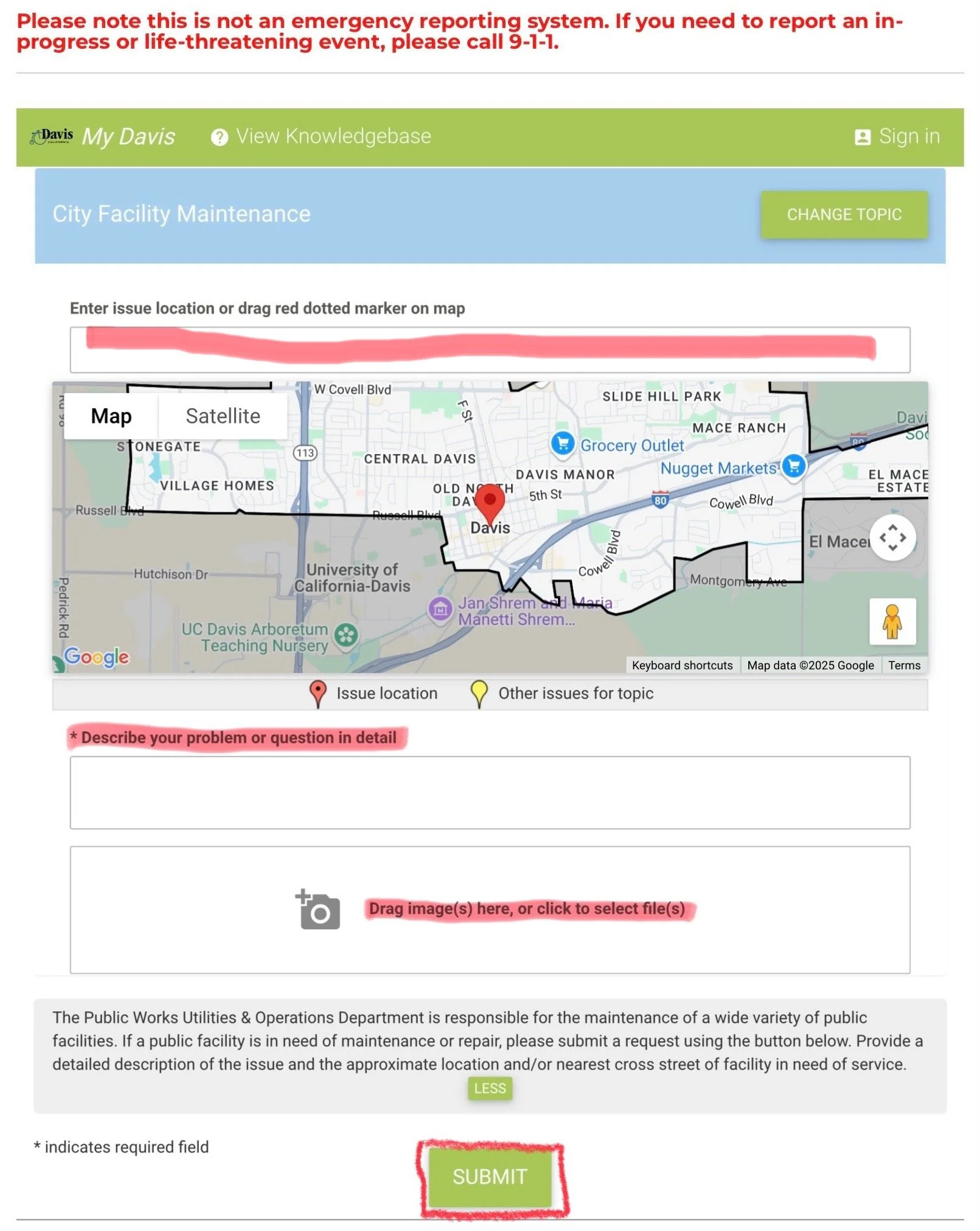
Did you know that the City has an app you can use to report non-emergency infrastructure problems you encounter when you’re out and about? There’s also a web form if you don’t want to use an app. Here’s a quick primer on how to report a problem using the web form. You can do this on the go or when you get back to your computer. Be sure to snap a photo if you’re planning to report later!
if you see an emergency situation, dial 9-1-1!
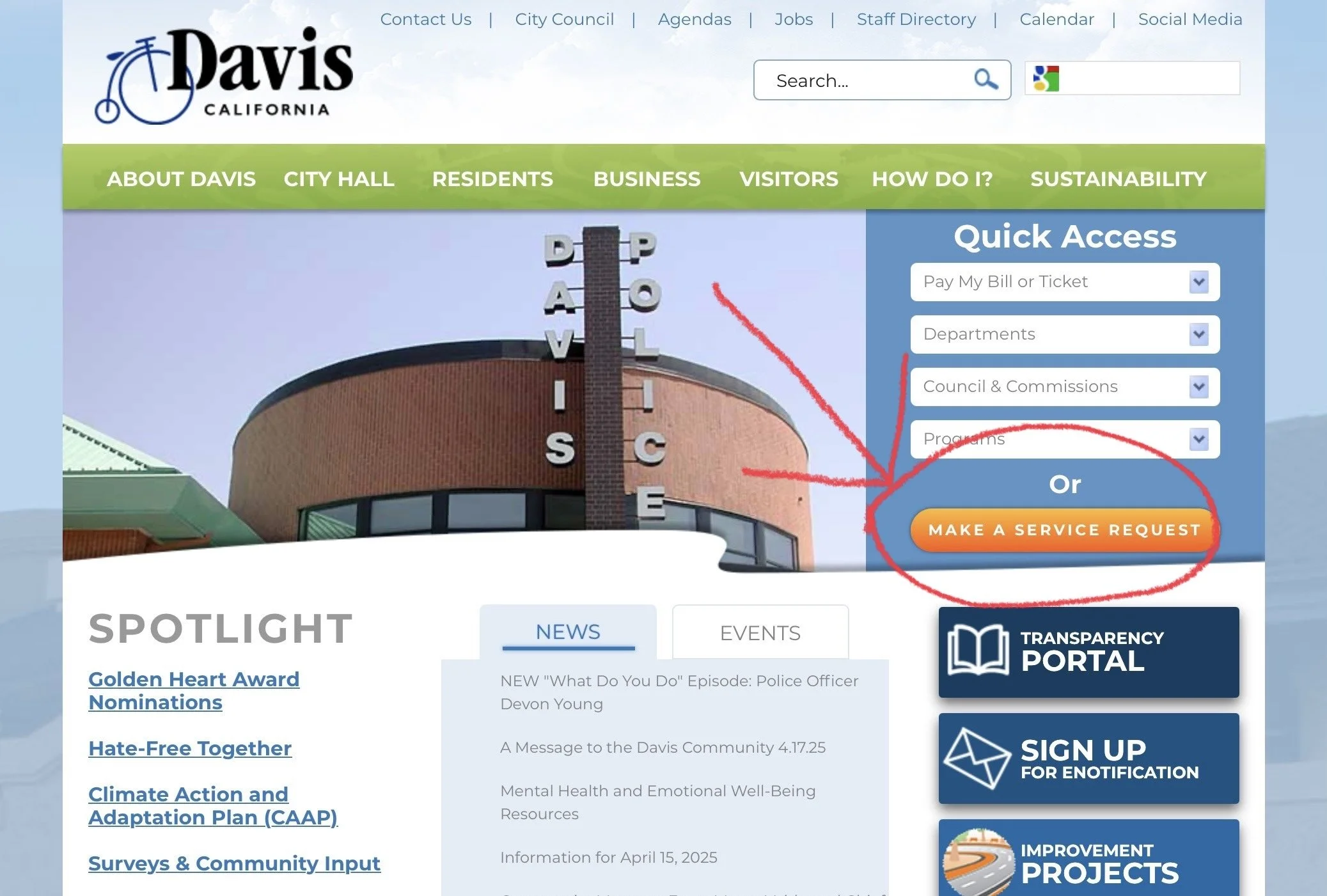
1. Point your internet browser to the City’s homepage. Click the big orange button!
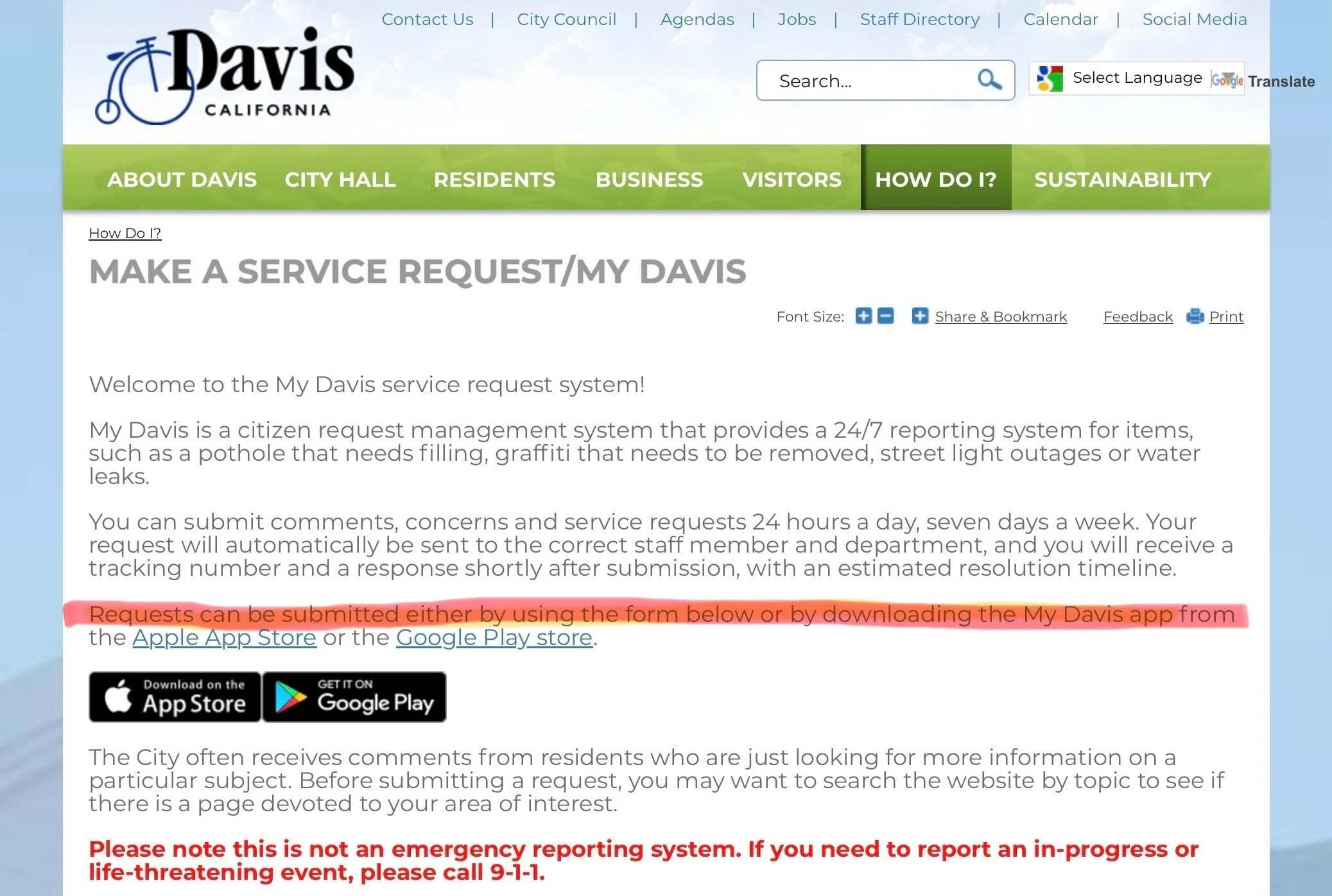
2. Scroll down the page to fill out the form (pro tip: download the mobile app to report issues from wherever you are).
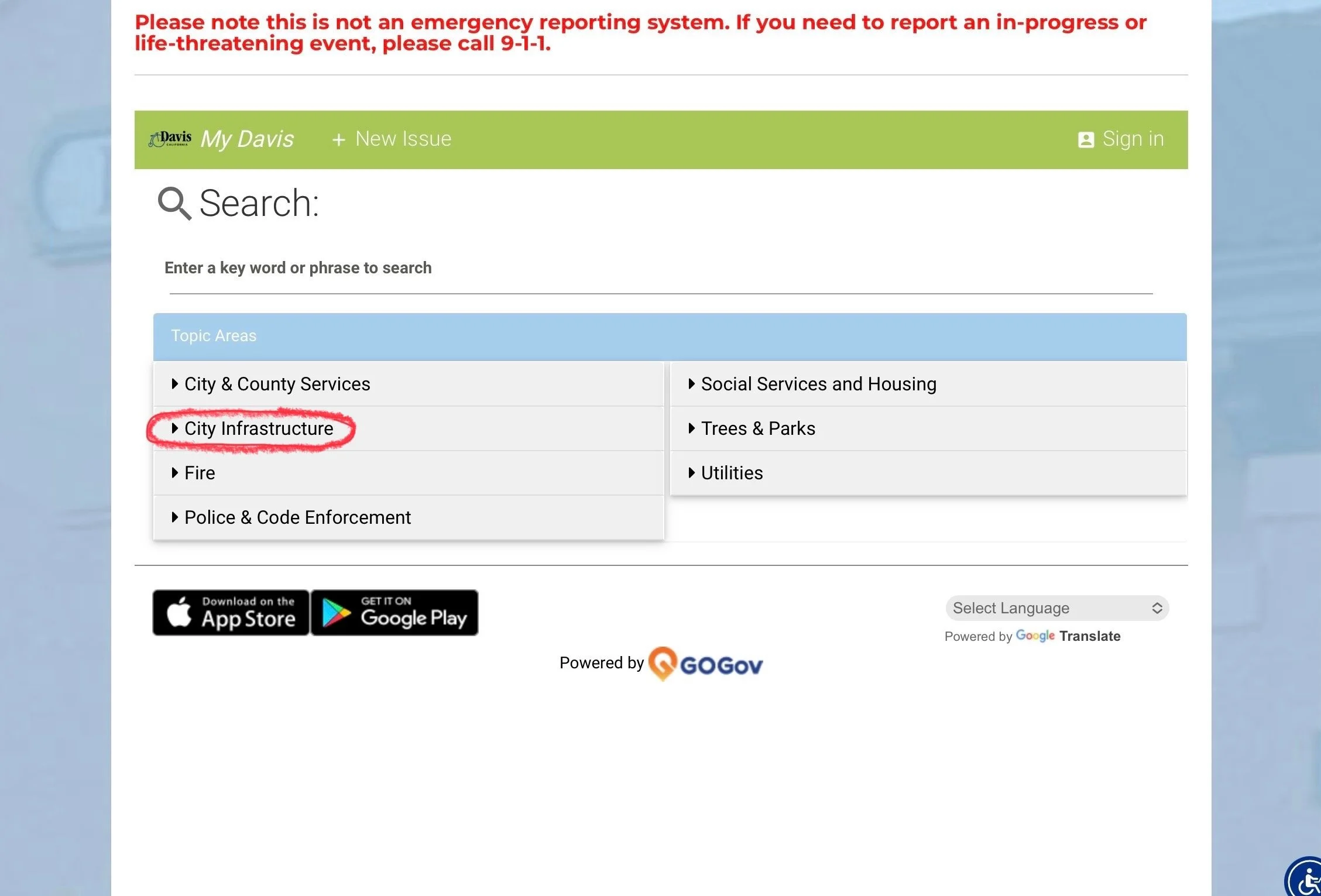
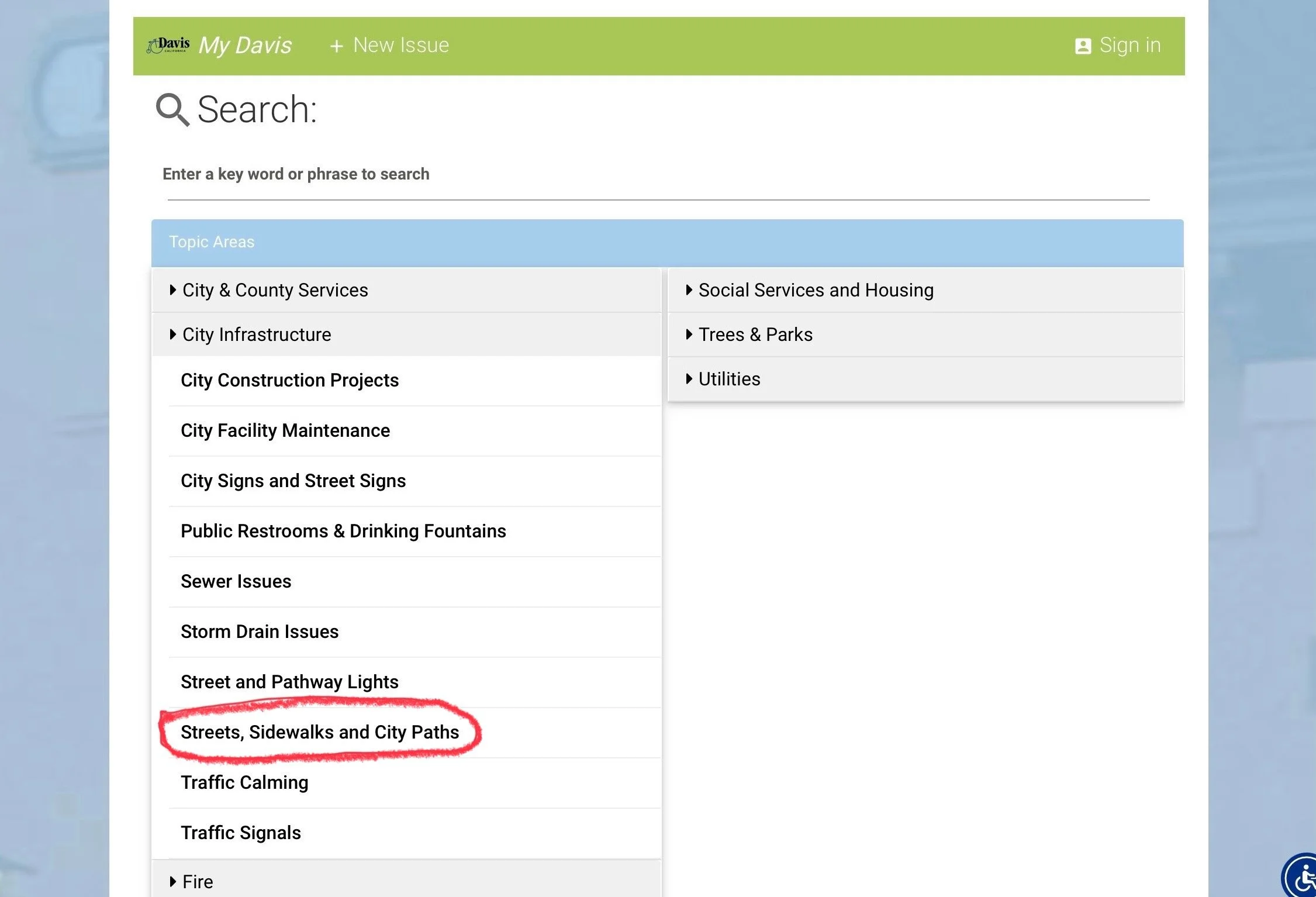
3. In the web form, select “City Infrastructure”.
4. Select the appropriate infrastructure from the list that drops down. In this example, we’ll choose “Streets, Sidewalks and City Paths”.
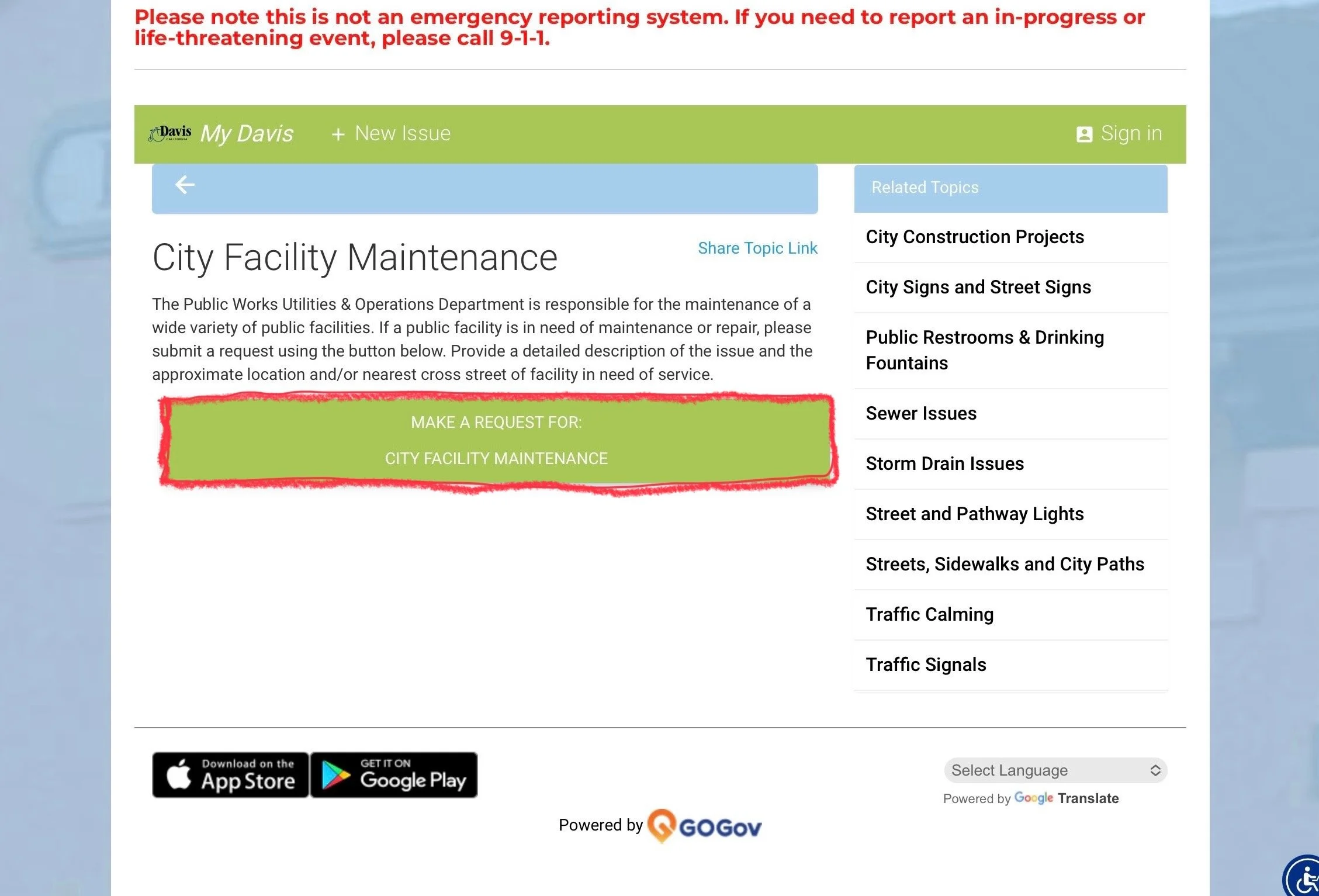
5. Click the green button to confirm your choice.
6. Type an address, street name or landmark name in the location box and select an appropriate option from the list. This will move the red marker on the map to the approximate location of the issue.
7. On the map, click and drag the red marker to the location of the issue. The yellow markers show problems that have already been reported, but don’t let that stop you from reporting a problem again - the squeaky wheel gets the grease, as they say!
8. Type a brief description of the issue in the box.
9. Click the camera icon to take a photo of the issue (or upload a photo if you’re at your desk).
10. Hit that “Submit” button!